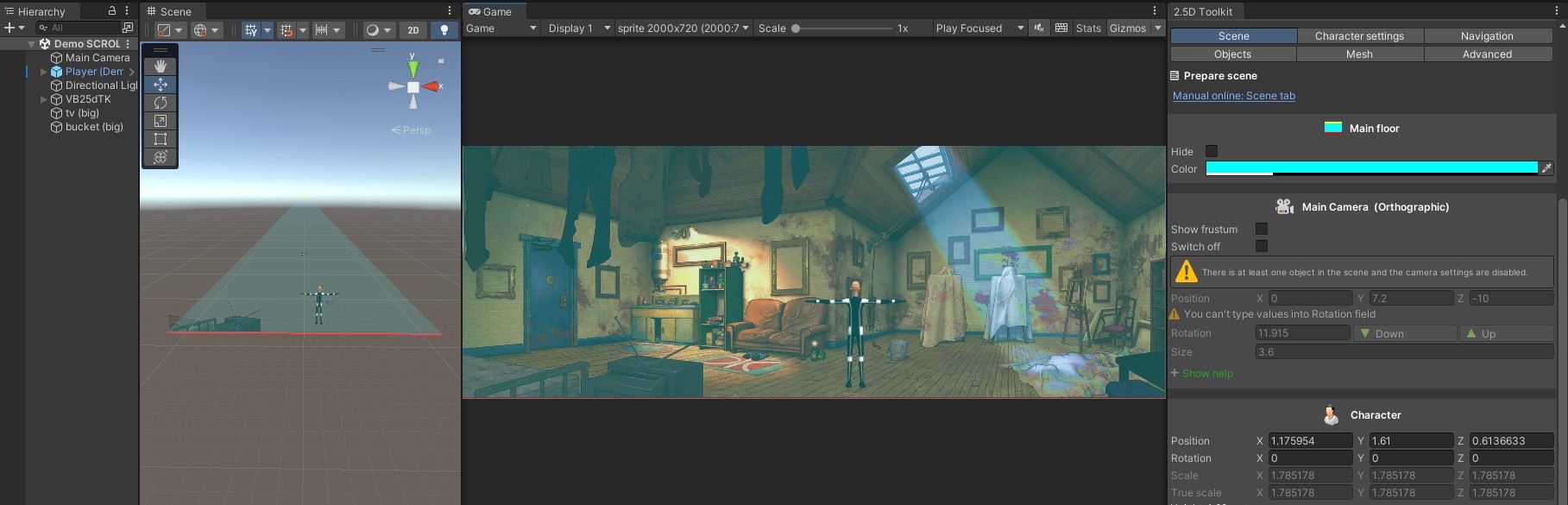
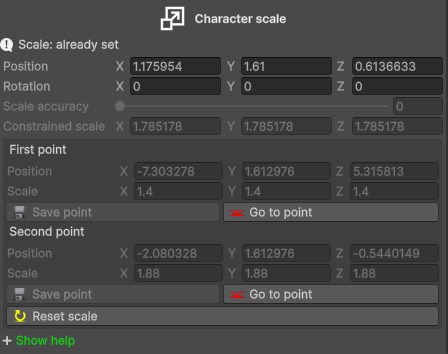
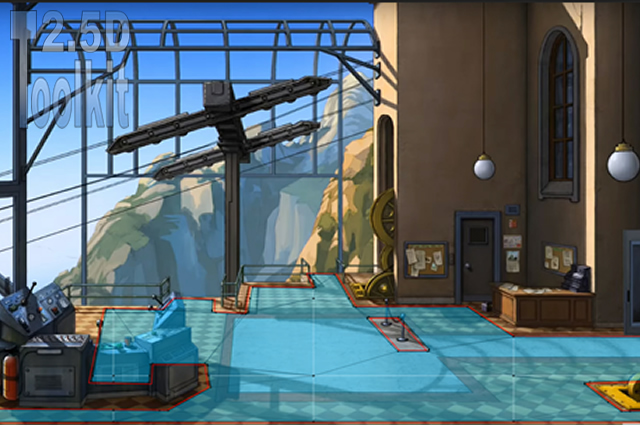
To set the character scale, follow these steps:
- Choose two reference points in the scene (for example, a door or a table).
It’s best if these points are fairly far apart. - Drag the character (hold the right mouse button) to the first point and set its scale. Then click Save Point.
- Move the character to the second point, adjust its scale, and click Save Point again.
- Done!
From now on, whenever you drag the character with the right mouse button or enter Play Mode/Build Mode, the character will automatically resize according to the values you set.
Orthographic
- If you later change any camera parameters, the script will automatically recalculate the stored values to maintain the same visual proportions.
Perspective
- Any change to camera parameters requires re-setting the scaling points manually.
- This tool cannot be used in multi-level environments.
Note:
In Perspective projection, Forced Scaling should be used only after the camera has been correctly calibrated so that the character’s movement speed and the distance covered remain consistent with the environment.
If, even with a properly configured camera, the character appears visually out of scale at different depths of the scene (for example looking too small or too tall compared to the background), this tool allows you to define the scale at the nearest and farthest reference points, ensuring a consistent visual size across the entire scene.