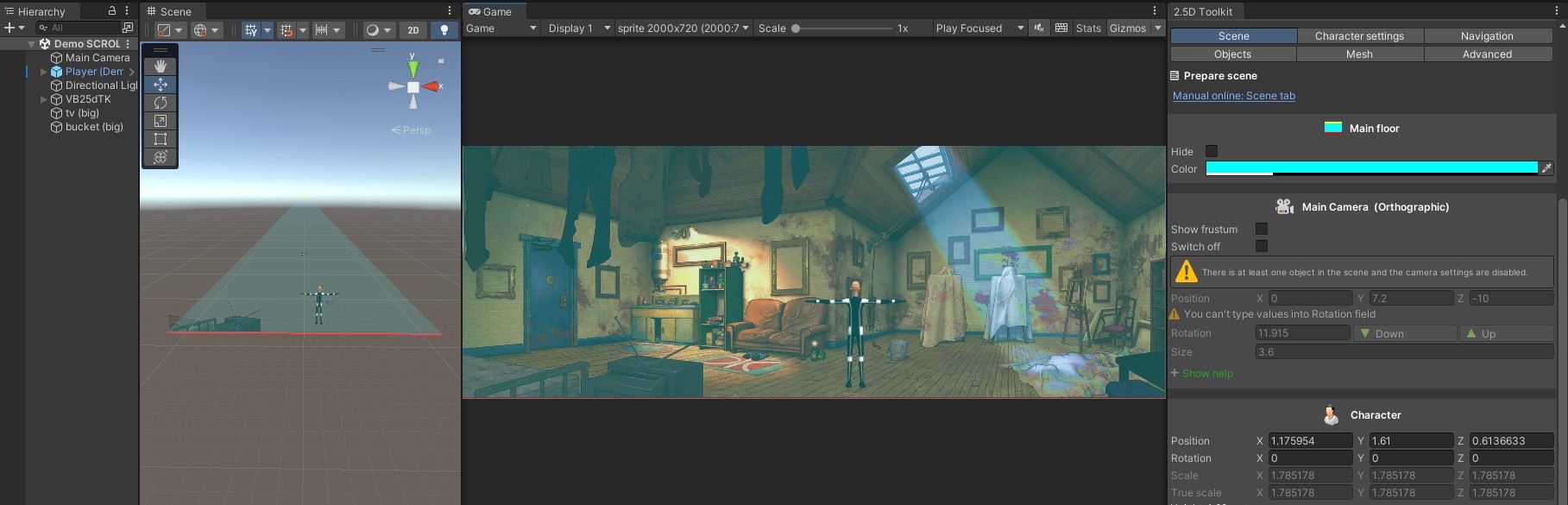
Objects Tab

From this tab you can manage all your scene objects.

Objects can be either 3D models or 2D sprites.
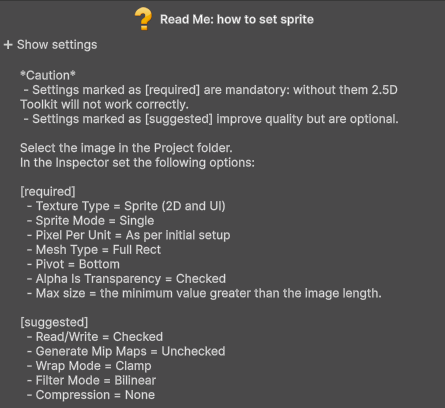
Sprites must be imported using the settings described in the contextual help panel Read Me: How to Set Sprite.
Both 2D and 3D objects are configured when they are first initialized.

To initialize an object, drag it from the Project window into its field.
This step is required because the object will be adapted to the needs of the 2.5d Toolkit.

A Sphere Collider and the ObjectControl script will be added automatically, allowing the object to be managed with the 2.5d Toolkit tools.

Once the object has been created and configured, it must be managed by dragging it from the Hierarchy into its field.
Dragging the same object again from the Project window will create new, independent copies.

Object management

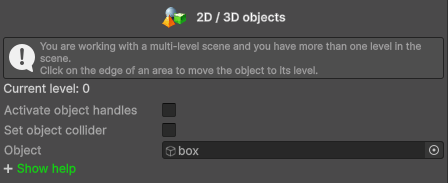
[Current Level]
If you are working in a multi-level scene, you may need to place objects on different levels.
Click the edge of an area to select its level, then drag the object onto that level.

[Activate Objects Handles]
You can select an object by dragging it from the Hierarchy into the Object field, or you can enable this option to select objects directly in the Scene View.

[Set Object Collider]
All object colliders are sized automatically by the script, but you can adjust their size if needed.

[Object]
Drag an object into this field:

  • From the Project folder to initialize it.
  • From the Hierarchy to manage it.

Read Me: how to set sprite

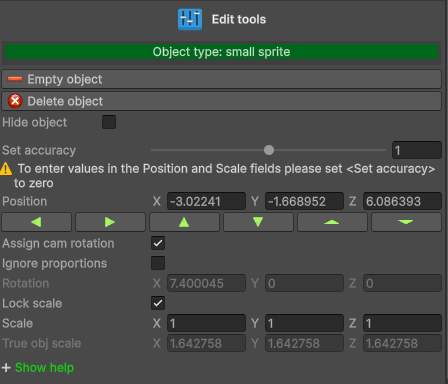
Edit Tools

To move the object in the scene, hold the left mouse button and drag it.

[Empty Object]
After placing the object, clear its field to avoid moving it accidentally.

[Delete Object]
Delete the object from the scene.

[Hide Object]
Use this option to help you precisely position sprites cut from the background.
Toggle it on and off while checking the Game View: if the object is correctly placed, you should not see any difference.

[Set Accuracy]
Use this slider to fine-tune the precision when manipulating objects.

[Position]
After placing the object, refine its position using the buttons together with Set Accuracy.

[Assign Cam Rotation]
Usually required for sprites.

[Ignore Proportion]
When enabled, 2D objects will not be scaled while dragging.

[Rotation]
Disabled when Assign Cam Rotation is active.

[Lock Scale] / [Scale]
Adjust the object’s scale.