[Mesh Color]
For editor use only.
[Area]
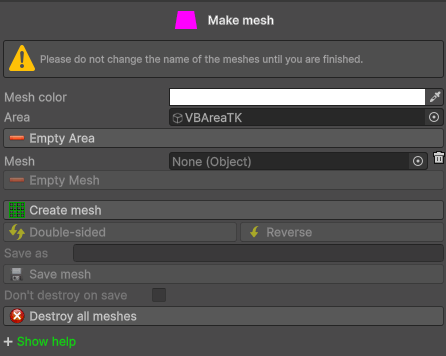
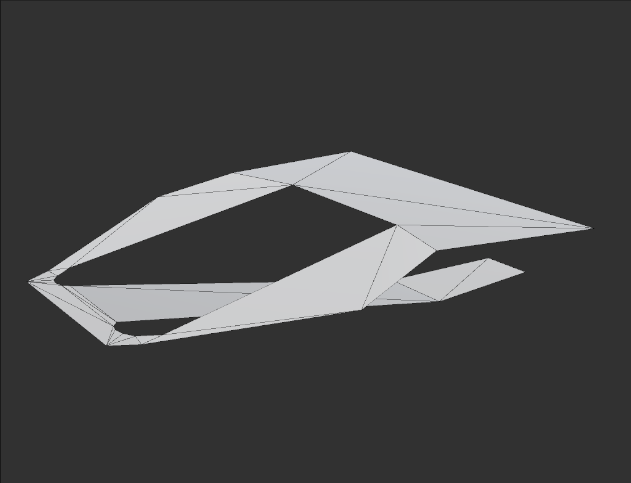
Drag the VBAreaTK container (child of VB25dTK) into this field if you want to create a single mesh from multiple areas.
[Mesh]
Drag the mesh from the Hierarchy into this field if you need to manage it.
[Empty Area] / [Empty Mesh]
Clear the fields without destroying the objects.
[Create Mesh]
Create the mesh using the Area field.
[Double-Sides]
Toggle between double-sided (default) and single-sided mesh.
[Reverse]
If the mesh is single-sided, reverse its vertex order.
[Save As]
Change the default mesh name.
[Save Mesh]
Save the mesh to:
Assets/2.5dToolKit/25dTKTools/Scene data/25DTK/[scene name]
Note:
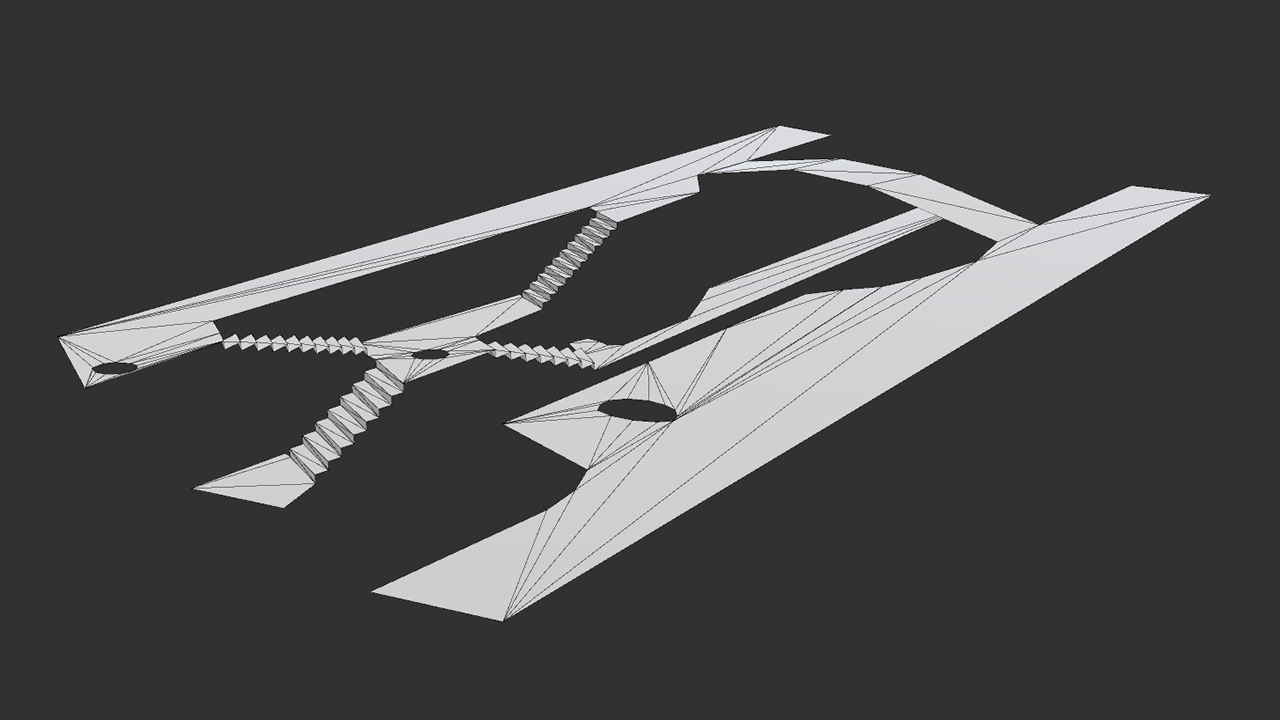
- During automated export (available from the Advanced tab), a single mesh can be generated on the fly by merging all drawn areas.
- If you need separate meshes, create and save them from this tool.
- If you assign materials or shaders to a mesh in the scene, drag it into the Mesh field and save it; otherwise, your changes will not be preserved.
- Before exporting, uncheck Include merged mesh if you want to export only the saved meshes.
[Don’t Destroy on Save]
By default, the mesh is removed after saving. Enable this option if you want to keep it in the scene.
[Destroy All Mesh]
Deletes all meshes in the scene that were created using this tool.