Advanced Tab
From this tab you can export the entire scene, including all its GameObjects, so you can use it either in the current project or import it into a new one.
The export process can also generate a Unity package that contains all the assets and references required for the scene to work correctly: meshes, background image, sprites, 3D objects, assigned materials, metadata, and every necessary link.
All exported data is stored in:
Assets/2.5dToolKit/25dTKTools/Scene data/25DTK/[scene name]
The resulting package is fully self-contained and does not depend on the original Toolkit folder structure, making it safe to import into any project.
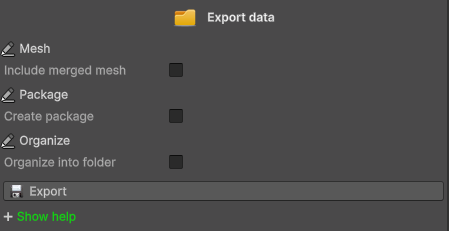
Export data
[Mesh]
Do not enable this option if you have already saved your custom mesh from the Mesh tab.
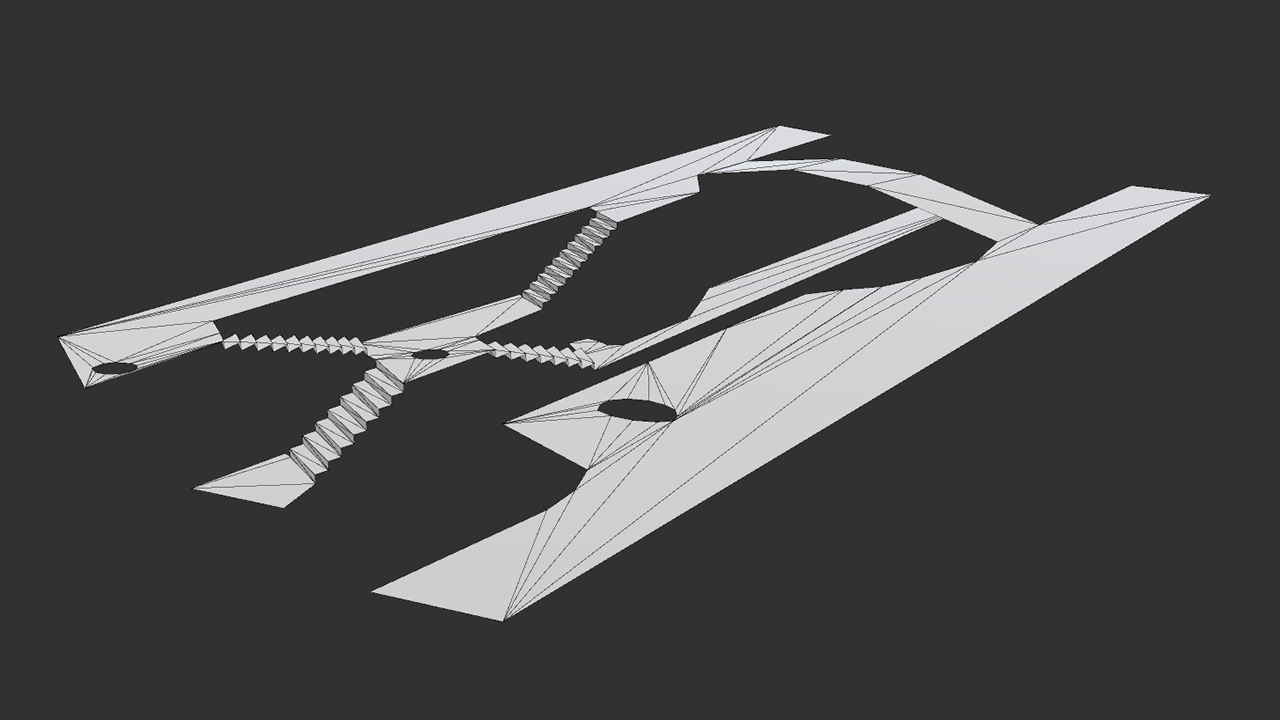
This option creates and saves a single merged mesh that joins all the areas you have drawn.
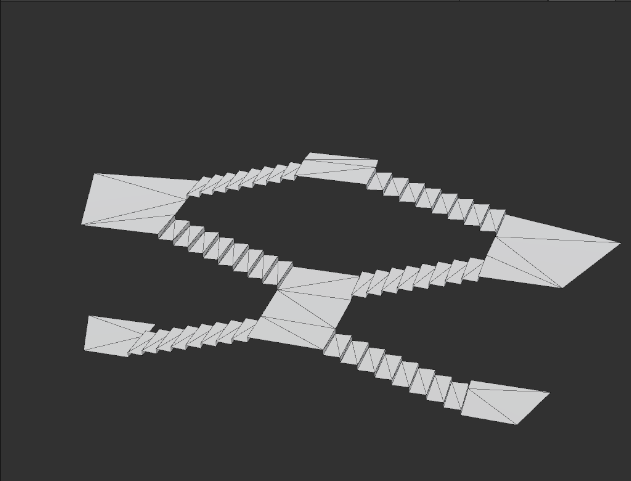
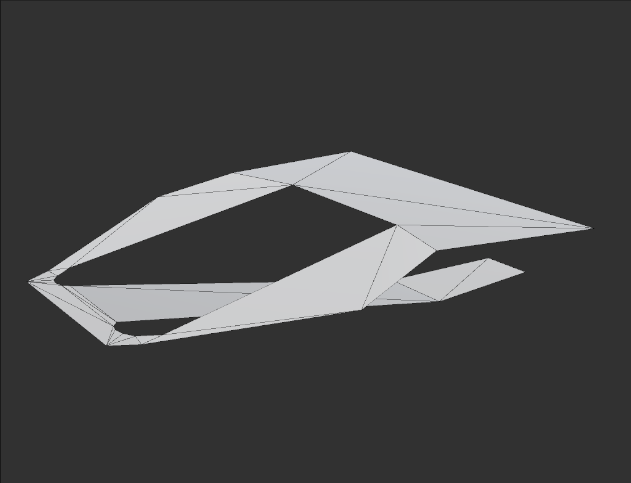
If you need separate meshes, create and save them from the Mesh tab.
[Package]
You are saving the scene inside the current project.
If you want to use this scene in a different project, create a package.
This ensures that all dependencies (scripts, materials, and linked assets) are included.
[Organize]
When enabled, the exported data is organized into four folders:
- Background Camera / Background Image
- Character
- Game Items
- Main Camera
In addition to these, four folders are always created, regardless of this option:
- Mesh
- Text Data
- VBEngineTK Full
- VBEngineTK Lite
All exported objects are saved in:
2.5dToolKit/25dTKTools/ Scene data/25DTK/[scene name]
Essential guidelines
Character assignment
The Character field in the Data Engine is always empty after export.
Assign your character manually once the scene has been imported into the target project.
The exported character includes: Animator, controller, NavMesh Agent, and the 2.5D Toolkit movement script.
When using external frameworks:
- Remove the 2.5D Toolkit movement script.
- Remove or keep the NavMesh Agent depending on the external system requirements.
- Root Motion controllers are recommended (enable Apply Root Motion in the Animator).
Data Engine
Two versions of the Data Engine are exported:
- VBEngineTK Full – for projects that continue using the full 2.5D Toolkit workflow.
- VBEngineTK Lite – for external frameworks (handles only depth-based forced scaling).
Use the version appropriate for your workflow.
What to place in your final scene
Using the 2.5D Toolkit:
- Import all exported elements:
background camera or sprite, main camera, mesh, objects, character prefab, and the VBEngineTK Full component.
Using external frameworks:
Import only:
- background image or scrolling sprite
- walkable mesh
- 2D and 3D scene objects
- VBEngineTK Lite (only if forced scaling was defined in the original scene)
Do not use the exported Main Camera or Background Camera.
Copy their settings from the TextData file included in the export folder.
Documentation
A detailed ReadMe Exported Scene file is included in the exported folder and is also available in the Documentation directory of the Toolkit.
Exporting Scenes: Full Reference
How to correctly import and use a scene exported from the 2.5D Toolkit, whether you plan to:
- Move the scene to a NEW Unity project (using the full 2.5D Toolkit workflow or an external adventure framework).
- Continue using the scene INSIDE the SAME Unity project (again, either with the Toolkit or with a third-party framework).
The exported folder contains all resources needed for both workflows:
- Full 2.5D Toolkit workflow
- External framework workflow (Adventure Creator, etc.)
Follow the sections below depending on your target setup.
Importing the exported scene
Exporting to a NEW Unity project:
- When moving the scene to a different project, creating a package is mandatory.
The package ensures that all dependencies (scripts, materials, shaders, textures, animation controllers, etc.) are included correctly.
Exporting inside the SAME Unity project:
- If you are staying inside the same project, the package is optional.
All references already exist and Unity will find them normally.
Character assignment
Unity cannot save references to scene objects inside prefabs.
For this reason, the ‘Character’ field in the DataEngine is always empty after export.
After importing the scene into your target project:
- Assign your character manually to the ‘Character’ field of VBEngineTK Full or VBEngineTK Lite.
The scene will load normally, but certain systems managed by the Data Engine will not operate until the character has been assigned.
Note:
The exported character prefab includes:
- Animator
- Character controller
- NavMesh Agent
- 2.5D Toolkit movement script
When using the scene in a third-party adventure framework, the movement script from 2.5D Toolkit must always be removed, because movement will be handled by the external system.
The use of the NavMesh Agent depends on the framework:
Some frameworks automatically add their own NavMesh Agent through their setup wizard.
In this case you should remove the exported NavMesh Agent to avoid duplicates.
Other frameworks may require you to keep the NavMesh Agent already included in the exported character.
Follow the instructions of the external tool you are using.
The Animator and the character controller should normally be kept, unless the external framework requires its own custom controller.
* Suggestion *
For use with external frameworks, prefer the Root Motion controller instead of the NavMesh-Agent-based controller.
Most third-party adventure systems use Root Motion for character movement.
If you choose this workflow, remember to enable Apply Root Motion in the Animator.
Note:
If you intend to use depth-based forced scaling, your character must be present in the scene hierarchy.
Spawned or runtime-instantiated characters cannot be used, because the Data Engine requires a direct scene reference to calculate scale interpolation.
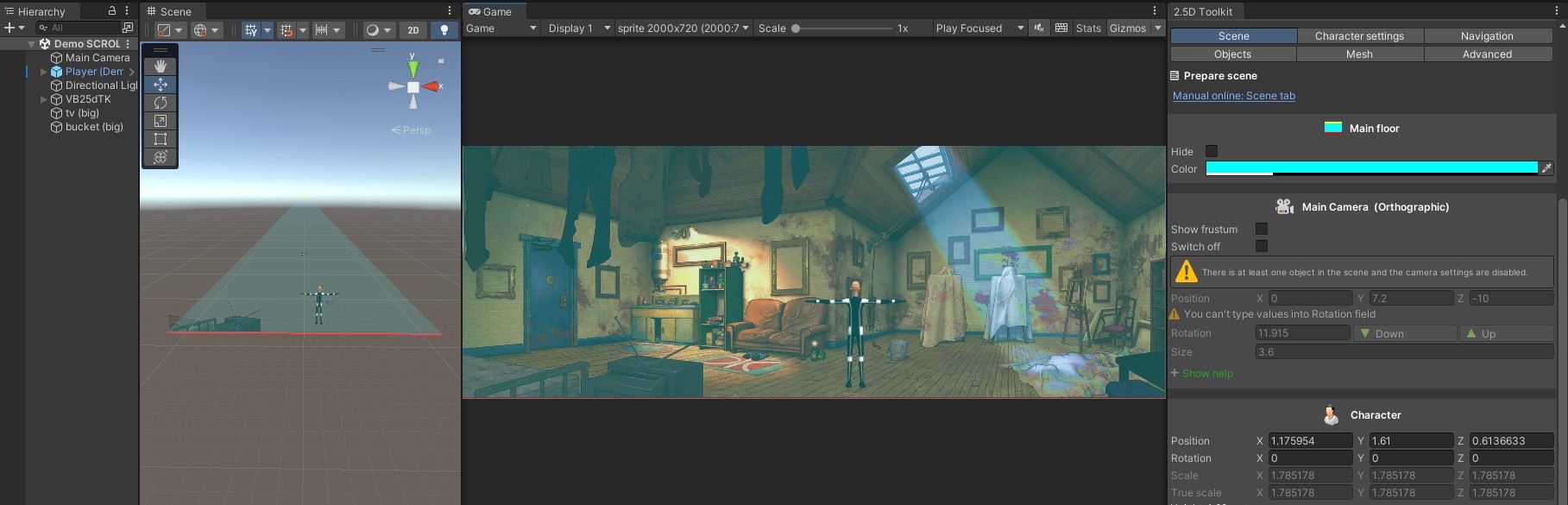
Selecting the correct Data Engine
The exported folder includes two Data Engine prefabs:
- VBEngineTK Full
Use this version if you will continue using the complete 2.5D Toolkit system (camera, navigation, movement, forced scaling, etc.). - VBEngineTK Lite
Use this version when importing the scene into a third-party framework (e.g. Adventure Creator).
It only handles depth-based forced scaling.
If NO forced scaling was defined in the original scene, VBEngineTK Lite is optional in external frameworks.
Using the exported data – What to drag into your scene
Choose the workflow that matches your target:
Full 2.5D Toolkit workflow
- Drag all exported elements into the scene:
- Main Camera
- Background Camera or Background Image
- Character
- Mesh
- 2D and 3D objects
- Data Engine (VBEngineTK Full)
Make sure the mesh keeps the ‘Static’ flag before baking the NavMesh.
External adventure frameworks
- Import only the following:
- If the exported scene used Background Camera mode: assign the image to the third-party background system.
- If the exported scene used Scrolling mode: use the exported sprite.
- Mesh
- 2D/3D objects
- VBEngineTK Lite (only if forced scaling was defined)
Do NOT import:
- Main Camera (use the framework’s camera system)
- Background Camera (same reason)
Important:
Even though third-party frameworks use their own camera system, you must manually copy the camera settings from the exported scene to the external camera.
All camera parameters used in the original scene are stored in the export folder under:
* TextData folder *
Inside this folder you will find a text file named ‘[SceneName] (Data)’ that lists the complete configuration of every exported object.
When working with external frameworks, open this file and transfer the camera settings to the framework’s camera to preserve the same visual composition and scaling behavior.
Background setup
If you use background camera (Toolkit workflow):
- Create a dedicated layer for the background (default: “VBBackground”)
- Assign this layer to:
- The background canvas (VBBackgroundImgUI)
- Set Background Camera Culling Mask: Only that layer
- Set Main Camera Culling Mask: Everything except that layer
If you use background sprite (scrolling):
- No setup required.
NavMesh and Unity version compatibility
When importing between projects using different Unity versions, NavMesh components may behave differently.
- If the original project used “AI Navigation” (Unity’s modern NavMesh system), ensure the package is installed in the target project.
- If the mesh loses its “NavMesh Surface” component during import, simply re-add it and bake the NavMesh.
Steps to restore NavMesh functionality:
- Install ‘AI Navigation’ from the Package Manager
- Select the mesh object
- Add ‘NavMesh Surface’
- Configure it as in the original scene
- Bake the NavMesh before Play or Build
Bake the NavMesh before Play Mode
Enter Play Mode / Build mode only after the NavMesh has been baked.